Free Google SEO Tools: 7 Tools to Build Your SEO Stack From Scratch
A lot of people assume Google SEO requires paid tools from day one — Ahrefs and Semrush both run well into the thousands per year. For beginners, that spend is unnecessary. Google itself ships a full set of free tools, and paired with a handful of free third-party tools, that's enough to take SEO from zero to one.
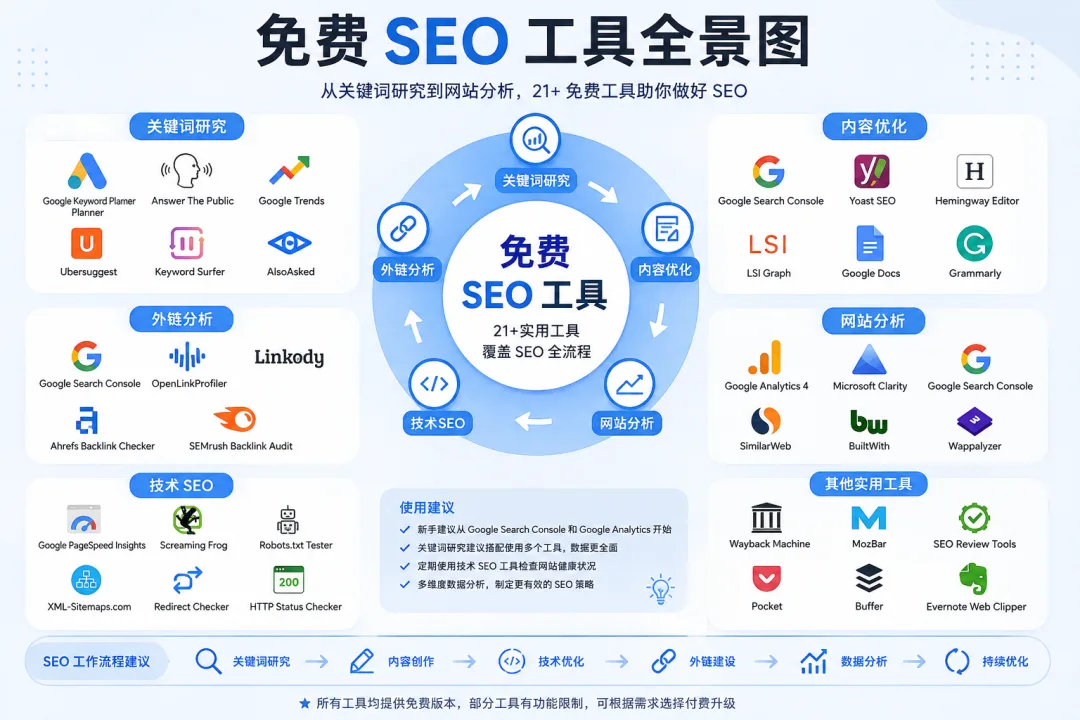
This post walks through the 7 most useful free tools in detail: what each one does, how to set it up, how to use it day to day, and what problems it actually solves.
1. Google Search Console: Your SEO Command Center
This is Google's own "admin panel" for your site — it tells you exactly how Google crawls, indexes, and displays your pages. It's the single most important SEO tool, full stop. It answers questions like:
- Which of my pages has Google actually indexed?
- What search queries are people using to find me? (the most valuable data point here)
- Where do my pages rank, and how much impression/click volume are they getting?
- Are there technical errors or mobile usability issues?
Setup (the steps that matter):
- Sign in with a Google account and click "Add Property"
- Choose the "Domain" property type (not "URL prefix") and enter your bare domain, e.g.
example.com - You'll get a DNS TXT record — add it in your domain registrar's dashboard (Cloudflare, GoDaddy, etc.)
- Go back to Search Console and click "Verify" — it usually takes anywhere from a few seconds to a few minutes
The first thing to do after verifying: submit your sitemap. Under "Sitemaps" in the left sidebar, enter yourdomain.com/sitemap.xml so Google knows your full page list. Skip this step and everything downstream is guesswork.
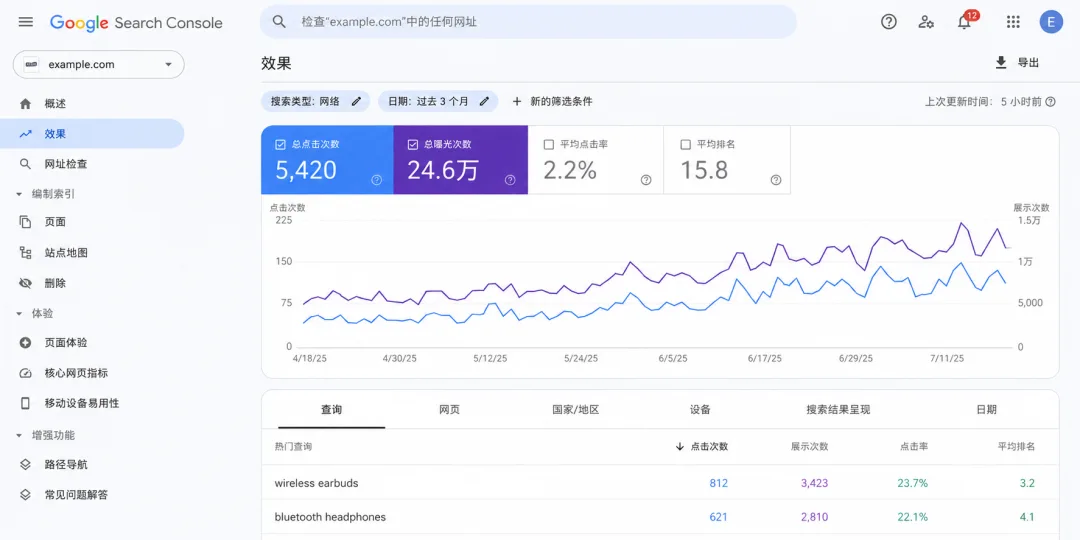
Four things worth checking regularly as a beginner: the Performance report weekly for impressions, clicks, and rankings — pay special attention to "Queries" to see which terms are actually driving traffic; URL Inspection to paste in newly published articles and click "Request Indexing" to nudge Google into crawling sooner; Page Indexing to periodically check whether important pages are stuck unindexed; and Mobile Usability to fix any reported errors.
2. Google Keyword Planner: The Free Way to Find Keywords
This is Google Ads' free official tool for finding keywords and checking search volume. It's built for advertisers, but it works just as well for SEO keyword research.
How to use it: create a Google Ads account (you don't need to actually run any ads) → open Keyword Planner and choose "Discover new keywords" → enter your seed keyword (e.g. bluetooth headphone) or a competitor URL → get back a list of related terms, each with a monthly search volume range and competition level.
It answers "which terms should I target," "does anyone actually search for this," and "what related and long-tail terms exist." One caveat: the search volume it reports is a range (e.g. 1K–10K), not an exact number — fine for gauging rough scale as a beginner. If you're targeting a specific market, remember to switch the location filter (US, Europe, etc.) — otherwise the data isn't relevant to your audience.
3. Google Trends: Tracking Momentum and Seasonality
URL: Google Trends
Trends shows how interest in a term changes over time, its seasonality, its geographic distribution, and how multiple terms compare to each other. Keyword Planner gives you volume; Trends gives you momentum.
Four practical uses: check seasonality by searching christmas gift and you'll see it spikes only in November–December and stays flat the rest of the year; compare keyword choices by putting bluetooth headphone and wireless earbuds side by side to see which one people actually search more; gauge industry direction by checking a term like electric bike to see whether the category is trending up or down; and check regional distribution to help pick a target market.
Trends reports a relative interest index (0–100), not absolute search volume. It answers "trend and comparison," not "how many people search this" — pair it with Keyword Planner, which handles the volume side.
4. PageSpeed Insights: Finding Performance Problems
URL: PageSpeed Insights
This is Google's official page speed testing tool — it measures your load time and tells you exactly what's slow and how to fix it. Enter your URL, wait for the analysis, check the score (0–100, with mobile being the one that matters), then scroll down for the specific recommendations.
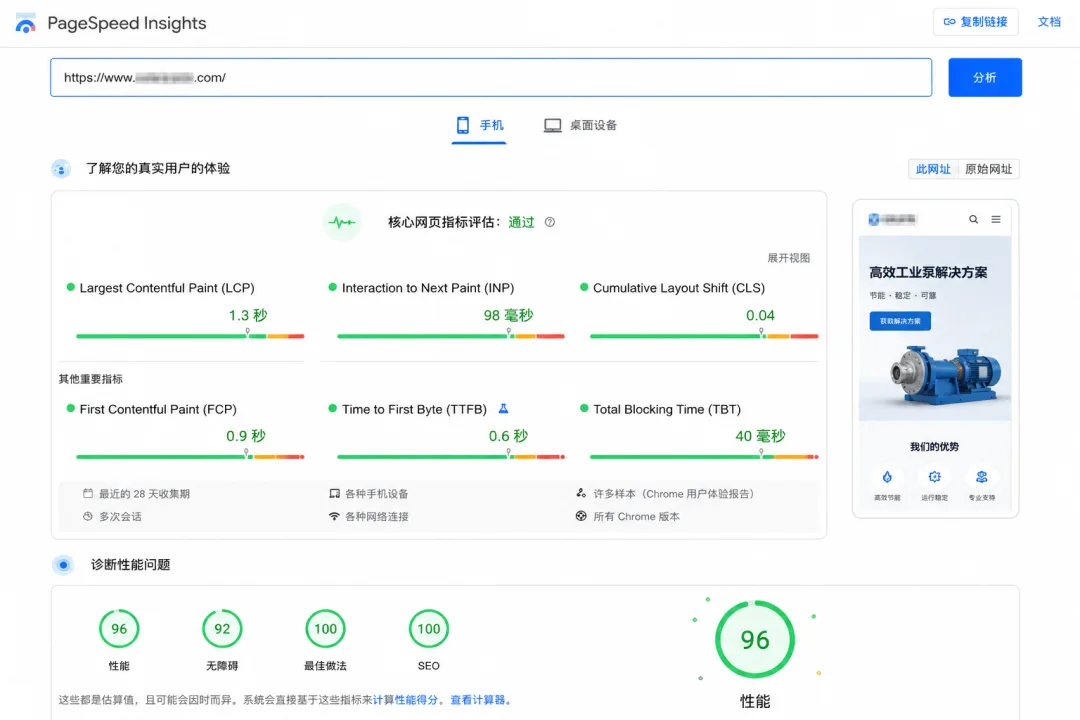
Focus on the Core Web Vitals: LCP (Largest Contentful Paint — main content load time, target under 2.5s), CLS (Cumulative Layout Shift — visual stability, target under 0.1), and INP (Interaction to Next Paint — responsiveness, target under 200ms). The two most common beginner mistakes are oversized images (compress to a few hundred KB and use WebP) and too many scripts or plugins (remove anything unused).
Speed is a hard SEO ranking factor. Google indexes mobile-first now, so a slow mobile experience directly hurts rankings — a 90 on desktop doesn't matter if mobile is what Google actually evaluates.
5. Google Analytics 4 (GA4): Understanding User Behavior
URL: Google Analytics 4
GA4 complements Search Console. GSC shows search performance (impressions, rankings, indexing); GA4 shows what happens after someone lands — how many visitors, how many pages they viewed, whether they converted. It answers how much daily traffic you get, where it comes from (search, referral, direct, social), and what visitors do once they arrive — pages viewed, time on site, purchases or inquiries submitted.
Setup: create a GA4 property with your Google account → get a measurement snippet and install it on your site (most site builders have a plugin for this) → from there you get both real-time and historical data.
GA4 and GSC are two different tools — don't conflate them. For SEO, prioritize GSC, but to know whether traffic is actually converting, you need GA4. Run both together and you get a complete feedback loop.
6. Microsoft Clarity: Free Heatmaps and Session Recordings
URL: Microsoft Clarity
Microsoft's free behavioral analytics tool shows you what users actually do on your site — where they click, how far they scroll, where they drop off. Hotjar, the equivalent paid tool, charges for this; Clarity is completely free and still fairly capable.
Its core features are heatmaps (click and scroll density), session recordings (full playback of real user sessions), and automated insights (flagging things like "rage clicks" on non-interactive elements or JS errors).
Install Clarity right after launch and check heatmaps and recordings weekly. Most "why isn't this page converting" questions get answered the moment you watch a recording — you'll often find users never scrolled far enough to see the CTA you designed so carefully.
7. Ubersuggest (Free Tier): An Entry Point for Competitor Analysis
URL: Ubersuggest
Built by Neil Patel's team, Ubersuggest's free tier covers basic keyword research and competitor analysis — a reasonable entry point before paying for Ahrefs or Semrush. The free tier gives you keyword overviews (volume and difficulty score for a given term), keyword suggestions (related, question, and comparison keywords), competitor analysis (a competitor's top keywords and traffic estimate), and content ideas (top-performing content for a given term).
Pay attention to its SEO Difficulty (SD) score — this is where it adds the most value over Google's own tools, since it factors in competitor strength rather than just search volume. An SD under 30 is realistic to target as a beginner; above 50, don't bother competing head-on. The free tier caps you at roughly 3 lookups per day, and the data is less precise than paid tools, but it's enough for a beginner looking for direction and inspiration.
Other Free Tools Worth Knowing About
These don't need a deep dive, but it's worth knowing they exist:
- Screaming Frog (free tier): crawls your own site (free up to 500 pages) to surface technical issues — effectively a lightweight technical SEO audit tool.
- Rich Results Test: checks whether your structured data (schema markup) is being read correctly by Google.
- AnswerThePublic: surfaces real user questions by expanding a keyword across who/what/when/where/why/how — useful for content ideation.
- Looker Studio: turns your GSC/GA data into visual reports, handy for monthly reporting.
- Hemingway Editor: checks English readability and helps you shorten and simplify sentences.
Putting the 7 Tools Together as a Workflow
Here's the full loop: use Keyword Planner and Trends to find a keyword, size it, and check its trend — then pick one worth targeting. Write content and build the page around it. Before launch, run PageSpeed Insights and get Core Web Vitals into range. After publishing, submit the page in Search Console and check its performance weekly. Use GA4 and Clarity to see whether traffic converts and how users actually behave. When you're ready to go further, use Ubersuggest to study what competitors are doing.
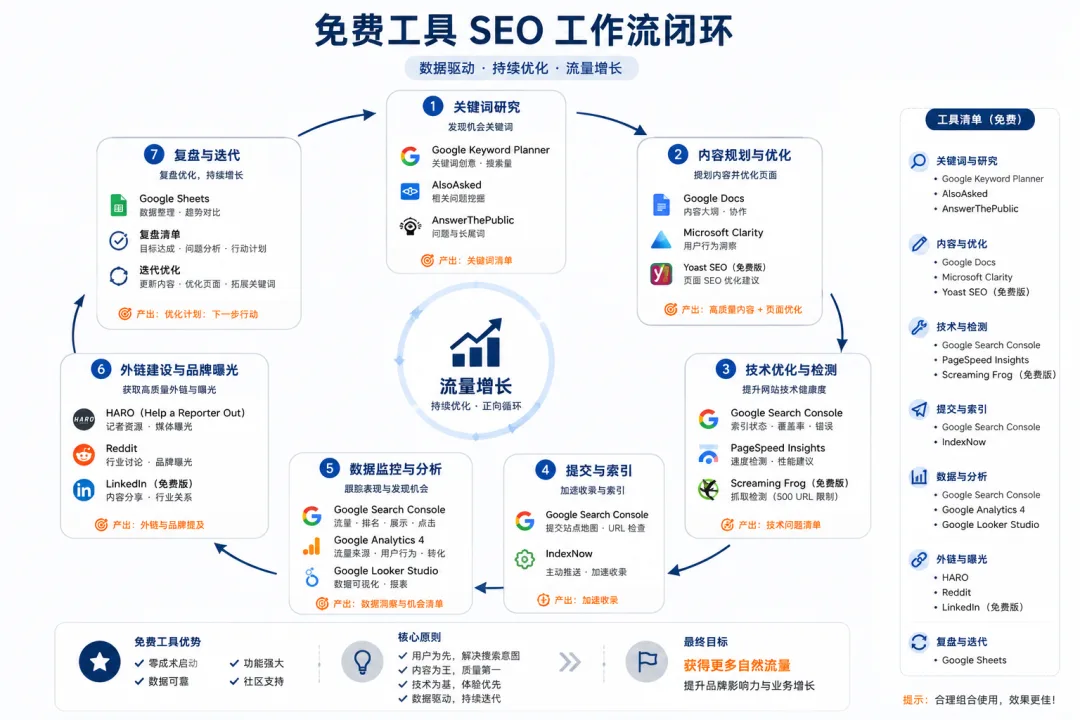
The core free Google SEO toolkit comes down to these 7: Search Console for seeing how Google sees you (the most important one), Keyword Planner for finding and sizing keywords, Google Trends for seasonality and momentum, PageSpeed Insights for finding performance issues, GA4 for user behavior, Clarity for how users actually interact with pages, and Ubersuggest as an entry point into competitor analysis.
Summary
As a beginner, the goal isn't to collect as many tools as possible — it's to actually use a few well. This free stack covers the entire SEO loop, and using it thoroughly already puts you ahead of most people doing SEO without a clear process. Once your site has real traction and you need precise backlink and ranking data, that's when paid tools earn their keep. Until then, squeeze everything you can out of the free tools first — that matters more than rushing to pay.