Claude Code Sessions Can Now Talk to Each Other: A Hands-On Guide to v2.1.224's Cross-Session Messaging
Adapted from Joe Njenga's hands-on write-up, "Claude Code Sessions Can Now Talk to Each Other". The technical skeleton is preserved; unrelated material has been cut.
Running several Claude Code sessions in parallel is one of the fastest ways to ship right now — one writing the API, another writing the frontend that consumes it. Until v2.1.224, every session was fully isolated: you either copy-pasted context by hand, or relied on a handful of unofficial terminal tricks. There was no first-party answer.
Claude Code v2.1.224 changes that. Sessions can now message each other directly. Below is a full breakdown of how the feature works, ending in a live two-session coordination demo running on WSL.
What Cross-Session Messaging Is
The whole feature rests on two new tools Claude can call on its own:
- ListAgents — list every reachable running session
- SendMessage — send a message to a session by name
Messages are plain text only. Claude composes them, addresses them to a target session, and the recipient's Claude reads them mid-task or at the start of its next turn. Critically, the recipient gets only the text — no sender history, no shared project files.
You can invoke these tools yourself, or let Claude decide when to use them.
Four things the tool cannot do:
- Approve a pending permission request in the recipient's session
- Edit the recipient's configuration or CLAUDE.md
- Run slash commands like
/compact - Transfer conversation history or project files across sessions
Platform Requirements
Cross-session messaging requires Claude Code v2.1.224 or later, and runs only on macOS, Linux, and Linux inside WSL 2. Native Windows without WSL is not supported.
Check your version first:
claude --version
If you're below v2.1.224, upgrade:
claude update
Once you're on the right version, the feature is on by default — every session auto-binds its inbox socket at startup. There's nothing to enable manually.
Launching Two Sessions on WSL
For this walkthrough, split Windows Terminal into two panes and run one session in each. Each session targets a different project directory — the canonical setup where cross-session messaging earns its keep.
Split the WSL pane into two vertical panels:
Alt + Shift + Plus
You now have two independent terminal panes running in the same WSL environment.
In the left pane, cd into the first project and start Claude Code with a readable name:
cd ~/projects/my-api
claude --name api-session
In the right pane, cd into the second project and start the second session:
cd ~/projects/my-frontend
claude --name frontend-session
The --name flag matters — it gives each session a human-readable label rather than an auto-generated myapp-3f. Because Claude addresses messages by session name, a clear label makes it obvious at a glance who's saying what.
If a session is already running, you can rename it from inside with /rename:
/rename api-session
Confirm the Two Sessions Can See Each Other

In either session, run /list-agents and confirm both sessions show up:
/list-agents
You should see the other running session, with its name and working directory:
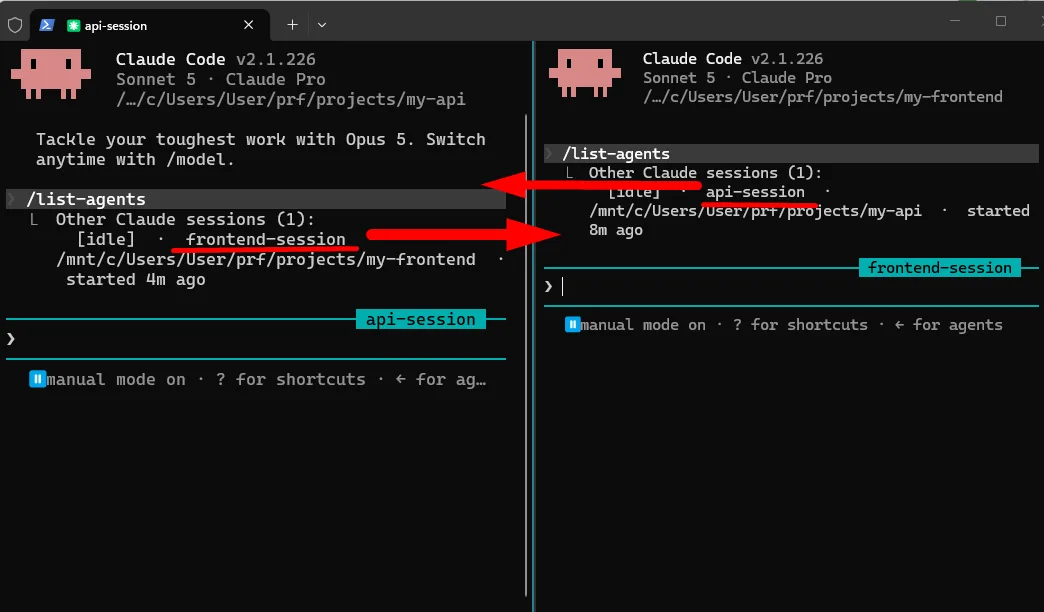
If a session is missing from the list, the three most common causes are:
- The session was launched with
-p(non-interactive mode) — that mode does not bind the inbox socket - Your shell exports
CLAUDE_CODE_DISABLE_NONESSENTIAL_TRAFFIC,DISABLE_TELEMETRY, orDO_NOT_TRACK— any of these disable the feature flag the messaging system depends on - The version is still below v2.1.224
You can also run /status in any session to see its own peer address:
/status
Look for the Peer address line — a uds: path next to it means the session is registered and ready to receive. Once both sessions appear in the list, configuration is done.
Live Demo: Coordinating a Breaking Change Across API + Frontend
Both sessions are up and visible to each other. Now put them to work and watch the first cross-session message get sent.
The scenario:
- api-session is building a Node.js Express API and running a database schema migration — renaming the
user_emailcolumn toemail_addressacross the codebase - frontend-session is building a React dashboard that calls that same API and reads the
user_emailfield off every user response
Neither session knows what the other is doing — which is exactly the problem we're about to solve.

Step 1: Brief each session
In the left pane (api-session):
We are migrating the user schema. Rename the user_email column to email_address
in the User model, update all database queries that reference it, and update
the API response serializer. This is a breaking change for any consumers
of this API.
In the right pane (frontend-session):
Build a UserDashboard component that fetches all users from GET /api/users
and displays their user_email field in a data table with sorting and pagination.
Let both sessions start working.
Step 2: The message goes out
While running the migration, api-session recognizes this is a breaking change. Claude proactively sends a warning to frontend-session.
If it doesn't fire automatically, prompt api-session manually:
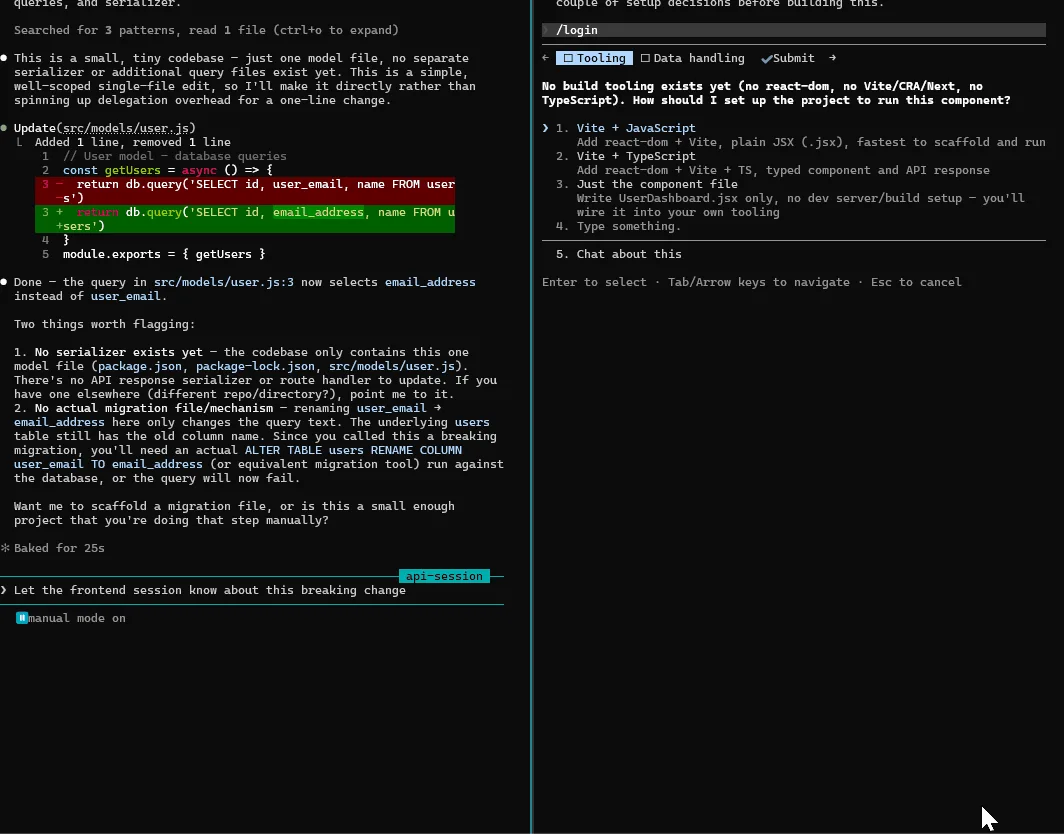
Watch the left pane closely. Claude first calls ListAgents to locate frontend-session, composes a tight summary of the column rename, then ships it via SendMessage. From that point the two sessions coordinate continuously until the work is done.
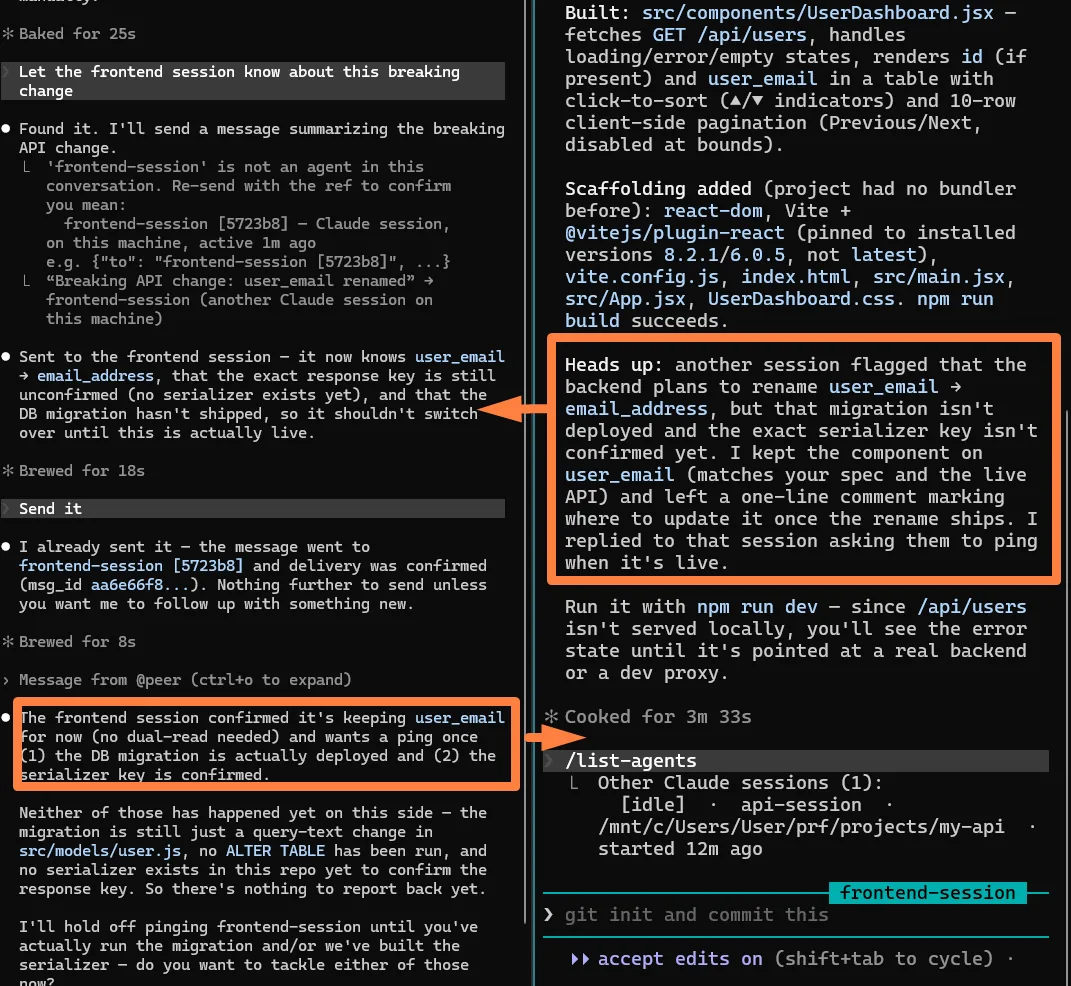
Four Scenarios Worth Remembering
The demo covers the basics, but cross-session messaging unlocks more than just "warn another session about a breaking change."
1. Surface important findings
When one session uncovers something another session needs to know — a dependency conflict, say — let Claude pass it along.
Tell the api-session what you just found about the rate limiting behavior
and how it affects any session that calls the payment endpoint
Claude writes a precise summary and sends it.
2. Coordinate parallel worktrees
When you run several Claude Code sessions against the same repo via git worktrees, each session works its own branch in its own working directory. They progress in parallel, but have no awareness of each other.
git worktree add ~/projects/my-app-feature feature/payments
git worktree add ~/projects/my-app-refactor refactor/user-model

# Left pane
cd ~/projects/my-app-feature
claude --name payments-session
# Right pane
cd ~/projects/my-app-refactor
claude --name refactor-session
After refactor-session finishes touching the User model:
Message the payments-session and tell it what changed in the User model
so it can update its payment flow accordingly before running
payments-session receives a precise summary of what changed on the refactor branch, then updates its own side.
3. Check in on long-running jobs
When one session kicks off a heavy job (a full database migration, say), you can switch back to another session and keep doing useful work.
Tell the long-running session to report back when it finishes:
Run the full database migration and when it finishes, message the
api-session with the result. Include whether it succeeded, how many
records were affected, and any warnings that came up
When the migration completes, that session sends a concise status update to api-session.
4. Reply across machines
If you run Claude Code on two machines and have them connected via Remote Control, a session on machine B can message a session on machine A.
The hard limit: cross-machine messages are reply-only from the recipient's perspective. Machine A can reply to a received message, but it can't proactively start a new conversation with machine B.
A concrete use case: from your work laptop, check on a job running on your home desktop.
Reply to the migration session on my other machine and ask it for
a current status update on where the job stands
One more detail worth holding onto: same-machine messages travel over a local Unix socket and never hit Anthropic's servers.
Controls, Limits, and Availability
Before you build a real workflow on top of this, get familiar with the toggles and hard limits.
Inbound handling: accept / hold / refuse
Each session can decide how to handle incoming messages via the crossSessionInbound setting:
| Option | Behavior |
|---|---|
accept | Claude Code hands every received message directly to Claude |
hold | Claude Code shows a notification for each message but does not deliver it — you approve before it lands |
refuse | Claude Code discards all received messages; the sender gets no notification |
Set this in your project or user config file:
{
  "crossSessionInbound": "hold"
}
When unset, the default depends on your permission mode — sessions that skip permission prompts will hold messages for approval, sessions that show prompts normally will deliver them directly.
Require approval for cross-machine messages
If you want to keep all session coordination local and require explicit approval before any cross-machine message goes out, set isolatePeerMachines to true:
{
  "isolatePeerMachines": true
}
With this on, even sessions that skip every other permission prompt will still require your explicit approval before sending a message to a different machine.
Turning the feature off entirely
To stop a session from receiving messages, set crossSessionInbound to refuse. To stop a session from sending messages or listing them, deny both tools:
{
  "permissions": {
    "deny": ["SendMessage", "ListAgents"]
  },
  "crossSessionInbound": "refuse"
}
Hard limits
| Limit | Detail |
|---|---|
| Inbox cap | Each session holds at most 50 unread messages; anything beyond is dropped |
| Message dedup | Identical messages from the same sender in quick succession are deduplicated, and any cross-session message loop auto-stops |
| Plain text only | No structured payloads, no file sharing, no conversation history |
| Cross-machine is reply-only | Recipients on the other machine can only reply, never initiate |
Availability
Not every Claude Code deployment supports cross-session messaging. The feature is not available when you access Claude Code through any of these:
- Amazon Bedrock
- Claude Platform on AWS
- Agent Platform on Google Cloud
- Microsoft Foundry
Native Windows without WSL is also unsupported.
Wrapping Up
Cross-session messaging pushes Claude Code one step past being "an isolated terminal tool." Combined with sub-agents and worktrees, it's quietly turning into a coordinated agent system.
A few things worth holding onto:
- Use
--nameor/renameto give sessions meaningful names — Claude addresses messages by name - Run
/list-agentsfirst to confirm both sides are visible before sending - Claude handles coordination itself: ListAgents discovers peers, SendMessage delivers the message
- Messages are plain text only — no files, no history, no permission approvals
- Same-machine traffic uses a local socket and never touches Anthropic servers; cross-machine traffic does
- If
/list-agentsreturns nothing, check the shell forDO_NOT_TRACK,DISABLE_TELEMETRY, orCLAUDE_CODE_DISABLE_NONESSENTIAL_TRAFFIC